
Appearance
Discount codes
A discount code is a word your customer types at checkout for money off. Run a launch promo, reward your email list, or win back a member who drifted — you make the code, share it, and Klixey applies it at the till.
Quick answer
Open the Store editor and go to the Discounts tab. Create a code, choose percentage or fixed amount, and decide whether it applies to all products or selected products. Optionally set start and end dates. Customers enter the code in the Discount code field at checkout.
When discount codes apply
Discount codes apply to one-time paid purchases. They don't apply to subscription renewals or to free products — there's nothing to discount. A fixed-amount code only works on prices in the same currency as the code.
Creating a code
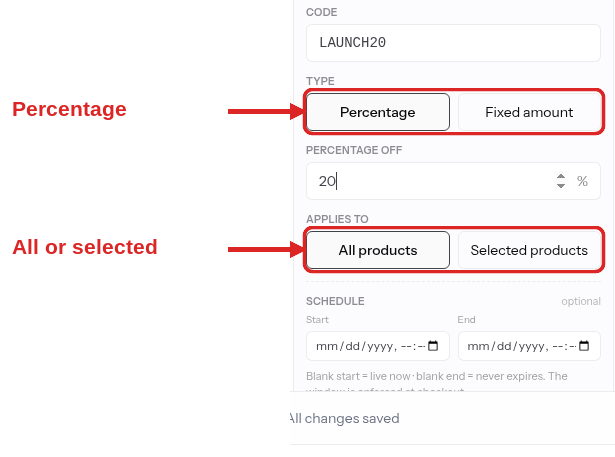
In the Store editor → Discounts tab, add a code and fill in:
| Field | What it does |
|---|---|
| Code | What the customer types — letters, numbers, hyphens, and underscores. Saved in uppercase and matched case-insensitively, so Spring24 and SPRING24 are the same code. |
| Type & value | Percentage (1–99% off) or a fixed amount in your currency. |
| Applies to | All products, or selected products (up to 50) that you pick. |
| Starts / ends | Optional. Leave starts blank to go live right away, ends blank to run with no expiry. |
| Active | A toggle to pause and resume a code without deleting it. |
Each code is unique within your store.
All products vs. selected products
- All products — the code works on any eligible one-time purchase.
- Selected products — the code only applies when the customer is buying one of the products you chose.
A code locks once it's been used
The first time a customer redeems a code, its code, amount, and scope lock — you can no longer change the word, the discount, or which products it covers. You can still pause it (Active off) or change its start and end dates. To change a discount you've already shared, create a new code rather than editing the live one. This keeps every past order's maths honest.
What your customer sees

At checkout, the customer enters the code in the Discount code field and clicks Apply:
- Valid — the code shows as applied and a discount line appears in the order summary, above the new total.
- Invalid or expired — a short message explains why, and the total is unchanged.
There's one code per checkout — entering a new one replaces the last. If a code brings the total to zero, checkout drops the card form and the customer simply claims their purchase. See Free checkouts.
Tips that pay off
- Make codes easy to type.
LAUNCHbeatsL4UNCH-2026_v2. Customers enter these by hand, often on a phone. - Time-box promos with an end date. Scarcity converts, and you won't forget to switch it off.
- Pause instead of delete. Flip a seasonal code to inactive and bring it back next year — its history stays intact.
- Use selected-products scope for targeted offers. Discount the new course without touching the rest of your store.
Related
- Order bumps — offer add-ons at the one-time checkout.
- Pricing your products — the prices a code discounts.
- How checkout works — the full buyer's-eye view of checkout.
- Refunds & disputes — the money-back side of selling.