
Appearance
Order bumps
An order bump is a small add-on offer that appears at another product's checkout. Your customer is already buying — a bump lets them add a related product with a single tick, before they pay. It's the "would you like fries with that" of your storefront.
Quick answer
Open the product whose checkout should show the offers, find the Checkout offers section in the editor panel, and add a bump for each product you want to offer. Write a short headline and description; the price comes from the offered product. Up to 10 per product. Your customer sees them as tick-box cards above the total at checkout.
When order bumps apply
Order bumps work on one-time paid checkouts only. The product whose checkout shows the bumps, and each product you offer, must both be:
- A Course, Community, Membership, or Digital download, and
- Sold at a one-time price (not free, not subscription-only).
Appointments and events can't carry or be offered as bumps, and subscriptions and free products are left unchanged. When a product isn't eligible, the Checkout offers section tells you why.
Adding an order bump
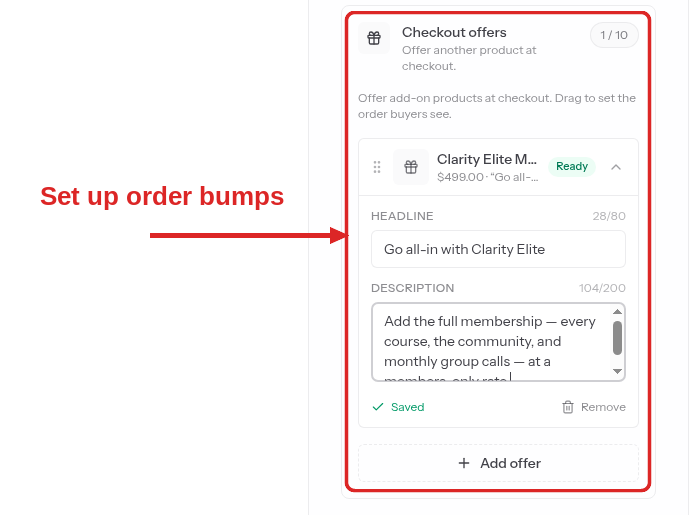
In the product's editor, open the Checkout offers section (under Pricing) and choose a product to offer. For each bump you set:
| Field | What it does |
|---|---|
| Offered product | The product the customer can add. Pick any eligible, published product in your store. |
| Headline | The bold line on the offer card (up to 80 characters). "Add the workbook for $12." |
| Description | A line or two on why it pairs well (up to 200 characters). |
The price is the offered product's own one-time price — there's no separate "bump price" and no bump-only discount. To offer it cheaper, change that product's price.
A few rules worth knowing:
- Up to 10 bumps per product. Drag them to set the order they appear in.
- The offered product must be published. A draft can't be offered.
- A product can't bump itself, and you can't add the same offer twice.
Editing and removing
You can rewrite a bump's headline and description anytime. To offer a different product, remove the bump and add a new one — the offered product can't be swapped in place.
What your customer sees
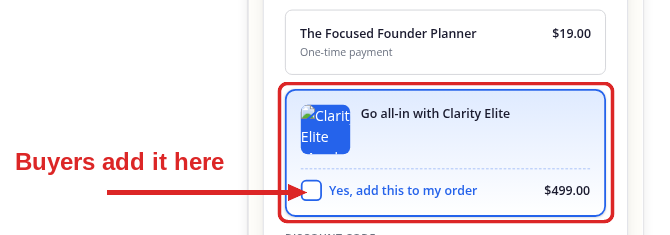
At checkout, eligible offers appear as cards above the order total, each with the product's image, your headline and description, and its price. The customer ticks "Yes, add this to my order" and the total updates on the spot. They can add as many as they like, or none.
Only offers in the same currency as the main purchase appear, so a customer never sees a price they can't pay in that checkout.
Tips that pay off
- Offer the obvious next step. The template that goes with the course, the 1:1 call that goes with the community. A bump should feel like a favour, not a second pitch.
- Price it as an easy yes. Bumps convert best well below the main product's price — an impulse add, not a fresh decision.
- Lead with your strongest offer. The first card gets the most ticks; drag your best pairing to the top.
- Keep the copy tight. One benefit in the headline, one reason in the description. The customer is mid-checkout, not browsing.
Related
- Discount codes — the other way to shape the one-time checkout.
- Pricing your products — set the one-time price a bump draws from.
- How checkout works — the full buyer's-eye view of checkout.
- Product types — which products can be sold and offered.